First-hand · verified against the real thing
The cut-off edges when the PC meets the TV: overscan, and the mode that hides the fix
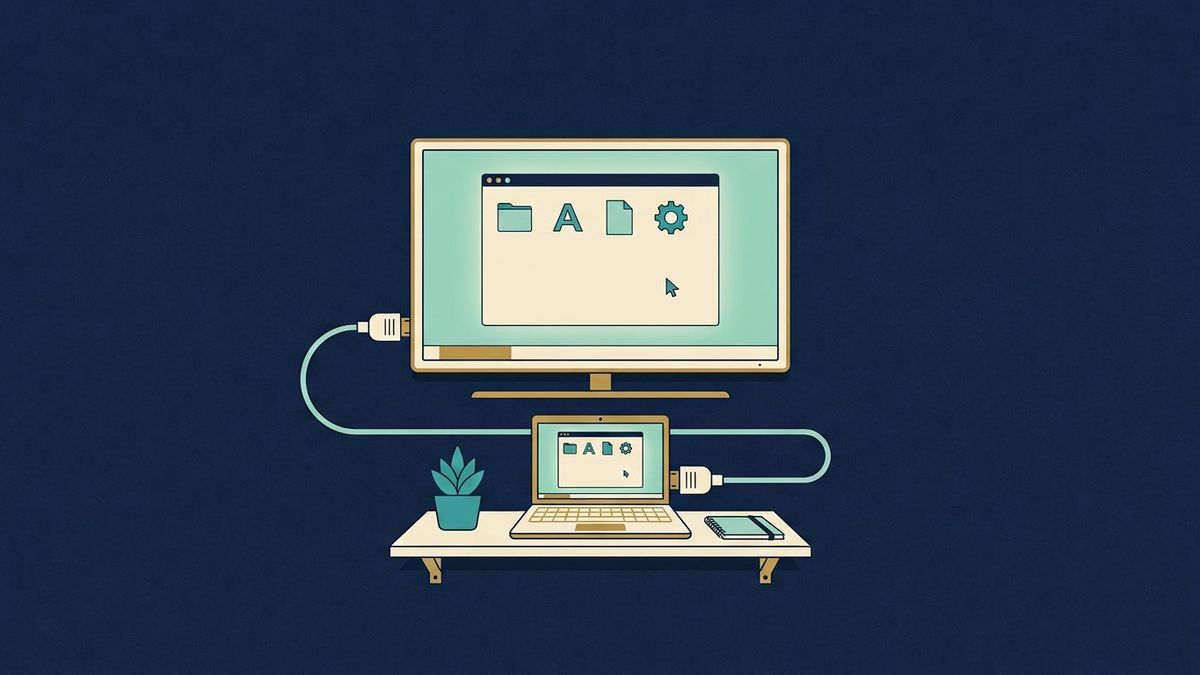
In one line: Why TVs crop what monitors never would, the one-word setting on each end that solves it, and the text-clarity issue hiding underneath.
Hook the PC to the living-room TV and the taskbar half-disappears - a framing insult that has one historical reason and two settings that kill it, followed by a second complaint (soft text) that the first fix usually cures and one menu that cures the rest.
Why the crop exists at all
Analogue broadcast never trusted its edges: the safe picture lived inside a border, and television sets of that generation - the design habit persists in budget panels - apply the old logic to HDMI by default, scaling the PC's 1920×1080 to fill a frame drawn for a slightly smaller picture. Monitors never crop; TVs "helpfully" do. The same logic can run backwards, giving black borders around a picture that should fill the screen, and both symptoms share the cure's name: underscan or just-scan or dot-by-dot, sold under a dozen brand names.
The order that works, because both ends have a setting
- TV first: the picture menu hides it as Picture Size (Samsung), Area/Full Pixel (LG), Screen Fit, Just Scan, or the input label itself - many sets apply the right behaviour if the HDMI input is simply renamed PC instead of HDMI1; on Sony-class menus the toggle is HDMI Signal Format - Enhanced. One of these exists on every panel since roughly 2015.
- GPU if the TV lies: AMD carries an explicit HDMI Scaling slider (Preserve scaling / Overscan / Underscan - set to 0%); Intel's command centre has the panel-matching slider under Display; NVIDIA's answer is a custom resolution timing, which is fiddly and last-resort - the honest fix belongs on the TV side.
- Then the text: if the edges are square but small fonts look feathered, the culprit is chroma - TV auto-detection subsamples the colour channels to save bandwidth (4:2:2 or 4:2:0), which the eye forgives on video and never on 9-point text. The PC-named input mode above turns that off by selecting full 4:4:4, which is also why the input label matters more than the resolution: 4K at subsampled colour is still soft.
The two settings the desk won't let leave unfixed
Game mode on the TV for anything with a keyboard or controller - a 1080p60 office machine barely notices the difference, but a laptop's cursor trail and audio sync feel every millisecond of a TV's post-processing, and "the mouse feels laggy" is a TV-menu diagnosis, not a GPU one. And scale, not squint: a 43-inch 4K panel at a desk's distance is a density monster - the text should live at 150-200% UI scale with the resolution left native; shrinking windows to fit small fonts is the backwards move every overscan casualty defaults to. If after all of it the picture still swims in fast motion, that's the refresh/VRR conversation this desk's monitor chapters keep separate - the crop and the colour are this page's whole war, and by the order above it's a two-minute one.
Next